
Understanding Usage Products
Use this blueprint to identify usage-based products, map resource groups correctly, and choose the right Pax8 usage endpoint for monitoring or billing.
Build a reliable usage integration by identifying usage-based products, mapping usage correctly to companies, and choosing the right endpoint for current-month monitoring versus finalized billing.
Usage-based workflows differ from seat-based workflows because costs are driven by consumption over time, not only by a subscription quantity. In most implementations, you need to identify which products behave as usage products, understand how resource groups map to companies, and decide whether you are monitoring current-month usage, reconstructing prior-month usage, or reading finalized charges from invoice data.
Recommended Build Flow
1. Identify Whether the Product Is Usage-Based
Determine whether the product is billed by consumption before you design the workflow. This affects whether you should look at pricing, usage summaries, usage lines, or invoice items.
2. Confirm How Usage Maps to a Company
Make sure the vendor entity or resource group is mapped to the correct Pax8 company. If that mapping is missing, usage may roll up to your partner record or shadow company vs. the actual company using this product (causing billing to be inaccurate).
3. Choose the Right Data Source for the Job
Use usage summaries for current-month monitoring, usage lines for more granular detail or prior-month reconstruction, and invoice items for finalized end-of-month charges.
4. Sync the Result Into Your Downstream Workflow
Once the data is mapped and validated, write the results into your billing, reporting, alerting, or customer-facing systems.
Product Types: Seat-Based vs. Usage-Based
Pax8 categorizes products into two distinct billing units of measure:
-
Seat or Device-Based Products:
- Billing: Billed per computer or device the software is installed on. Generally billed in advance.
- Estimation: Costs are predictable (Price per seat x Cost per seat).
- Example: Microsoft Office.
-
Usage-Based Products:
- Billing: Billed based on the consumption of a resource. Generally billed in arrears (after usage occurs).
- Estimation: Costs vary based on actual consumption.
- Example: Microsoft Azure.
How to Identify Usage-Based Products
Use the usageEligible boolean on a subscription to tell whether it has usage. It is returned by:
- List Subscriptions
- Get Subscription By ID
- Get Subscription History
WhenusageEligibleistrue, the subscription has usage data available. You no longer need to call the pricing endpoint and interpret rates to find this out, which also reduces API traffic.
Example response (abridged):
{
  "content": [
    {
      "id": "<subscription-id>",
      "billingTerm": "Monthly",
      "usageEligible": true
    }
  ]
}
Understanding Resource Groups
When viewing Usage Summaries in the Pax8 portal or via API, you will encounter Resource Groups.
What is a Resource Group?
Resource groups are identifiers included in usage summaries for specific vendors (e.g., Azure, Sophos). They represent logical groupings of resources tied to a specific customer environment or site.
Key Characteristics:
- Vendor Specific: They are constructed programmatically via meta data sent by the vendor to Pax8. They are constructed slightly differently for each vendor.
- Format: The format varies by vendor but often includes the company/site name in the vendor system and other information (e.g.,
LEGGAH PRODUCTS - CSP - 9AD72...). - Read-Only: These values cannot be edited within the Pax8 front end.
- Purpose: They are what partners use to identify which company this usage belongs to. They should use resource group names to map to the respective Pax8 company via portal UX as described below.
Usage Allocation & Mapping Logic
The "Shadow Company" Concept
A common challenge with usage-based billing is that vendors (like SentinelOne or DropSuite) typically send usage data tied to their own internal identifiers, not Pax8 Company IDs.
When Pax8 receives this usage data:
- The system attempts to match the vendor identifier to a Pax8 Company (via resource group mappings).
- If no link exists, the usage defaults to the Partner's own tenant record (often referred to as a Shadow Company).
- Consequently, usage summaries may initially appear unassigned or allocated to the parent partner account rather than the end customer.
How to Map Usage (Partner Action Required)
To ensure accurate billing, partners must perform a one-time linking process to associate Resource Groups with the correct Pax8 Company, so they do not end up incorrectly associated to the Shadow Company.
- Identify Subscription: Navigate to Subscriptions and select the applicable subscription.
- Navigate to Usage Summaries: From the Usage tab, note that if there is no company associated with a specific subscription, it will be noted underneath the Subscription title: "No company assigned"

- Link the Entity: Click the three dots (actions menu) at the end of the usage summary row for the specific Resource Group.
- Select Company: Choose the correct Pax8 Company to link to that vendor entity.
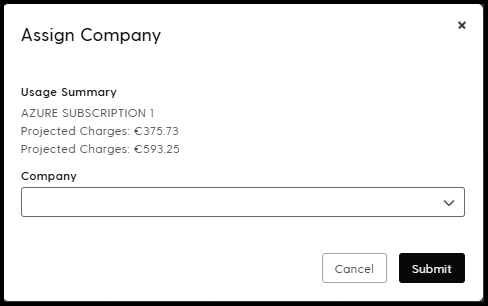
Note: This is generally a one-time process. However, partners will need to repeat this step if a new vendor entity is created or if new usage vendors are purchased via the Pax8 Marketplace.
The Azure Exception
Microsoft Azure is the primary exception to this manual linking requirement. Azure usage usually maps automatically to the correct Pax8 Company due to the existing Tenant ID mappings established during provisioning.
Public Usage Endpoints for Partners
Partners can use the following endpoints to monitor usage, keeping in mind the distinction between current-month monitoring, granular reconstruction, and finalized billing data.
1. High-Level Usage Summaries
Endpoint: <https://devx.pax8.com/reference/findsubscriptionusagesummaries>
- Purpose: Pulls high-level usage details for Pax8 products.
- Data Limitation: This endpoint returns data for the current calendar month only. Unlike the Pax8 Portal, which displays historical usage summaries, the API focuses on current consumption.
Use this endpoint when you want a current-month monitoring view or an operational dashboard.
2. Granular Usage Details
Endpoint: <https://devx.pax8.com/reference/findusagelines>
- Purpose: Allows you to pull more granular usage details or specific line items associated with a given usage summary found in the endpoint above.
Use this endpoint when you need daily or line-level detail, or when you need to reconstruct prior-month usage after usage summaries reset on the 1st.
3. Invoice Line Items (End of Month)
Endpoint: <https://devx.pax8.com/reference/findpartnerinvoiceitems>
- Purpose: Once the billing period closes, use this endpoint to monitor finalized end-of-month usage charges as they appear on the invoice.
Use this endpoint when you need finalized billing data rather than a live usage view.
Design Recommendations
- Keep seat-based and usage-based billing logic separate in your integration because they rely on different data sources and timing.
- Use usage summaries for monitoring and alerting during the current month.
- Use usage lines when you need more granular analysis or prior-month reconstruction.
- Use invoice items when you need the final, billable result for downstream finance workflows.
- Verify resource group mappings early so usage does not remain assigned to the Shadow Company.
Related Integration Guides
If you want a more specific, use-case-driven usage workflow, use these Integration Guides in the Pax8 platform. They include detailed steps for common monitoring, reporting, and customer-visibility scenarios and give you structured flows that you can adapt in your own system or push into your preferred AI tool to accelerate implementation.
Track current-month usage and alert when costs exceed expected thresholds.
Expose invoice and usage trends directly in a customer-facing portal.
Gather subscription, invoice, and usage data for recurring customer review workflows.
Updated about 15 hours ago